
How to Create an Opt-in Form in Systeme.io (Beginner Tutorial)
-
🛠️ What You’ll Need
-
🔷Step 1: Open the Funnel Editor
-
➕Step 2: Add an Opt-In Form (If Your Page Doesn’t Already Have One)
-
⚙️Step 3: Configure Your Name and Email Fields
-
🔘Step 4: Configure the Submit Button
-
✅ Step 5: Save and Test Your Opt-In Form
Disclosure: Some links in this article may be affiliate links, which means I may earn a commission at no extra cost to you if you choose to purchase through them. I only recommend tools I believe are genuinely useful, especially for beginners.
In this tutorial, I’ll show you how to create an opt-in form for your funnel page in Systeme.io so you can collect names and email addresses from your visitors.
Once your opt-in form is configured, visitors will be able to submit their information and continue to the next step in your funnel.
🛠️ What You’ll Need
If you don’t already have a Systeme.io account, you can create one here.
If you’re new to Systeme.io and haven’t created a funnel page yet, check out my tutorial on how to create a funnel in Systeme.io first.
🔷Step 1: Open the Funnel Editor
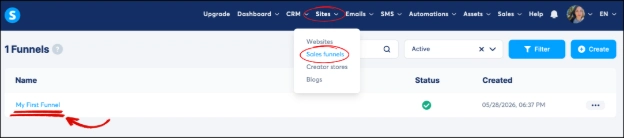
Go to Sites → Sales Funnels
Open the funnel you want to add an opt-in form to.
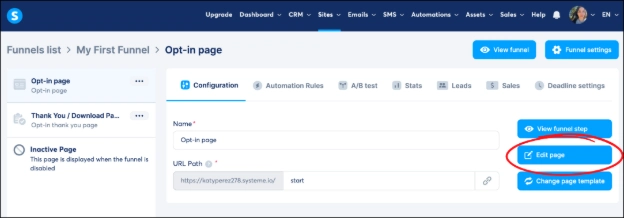
Click Edit Page.
➕Step 2: Add an Opt-In Form (If Your Page Doesn’t Already Have One)
📝Note:
Most pre-made templates already have areas where you can add elements such as forms, buttons, text, and images. If you see dotted lines appear when dragging an element, you can usually place it there.
On the left-side toolbar under Elements, scroll down until you see Form.
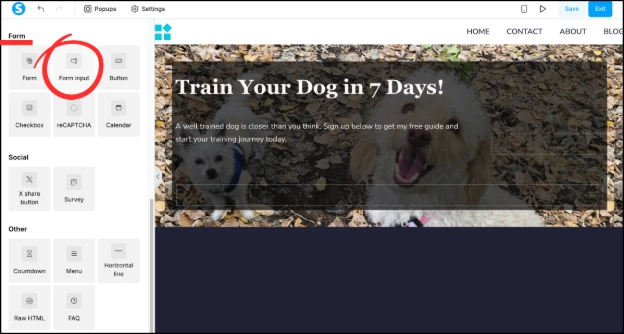
Drag two Form Input elements into your funnel and place them on any of the dotted lines that appear. Position one directly underneath the other.
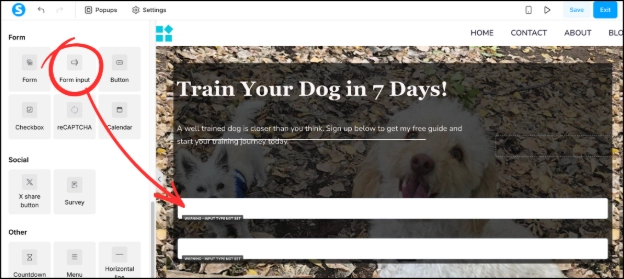
If you’re using a pre-made template, these elements may already be added for you. If that’s the case, you can skip ahead to Step 3.
⚙️Step 3: Configure Your Name and Email Fields
Before we configure the fields, it’s important to assign the correct input type to each one. This tells Systeme.io what information is being collected from visitors and helps ensure their information is stored correctly.
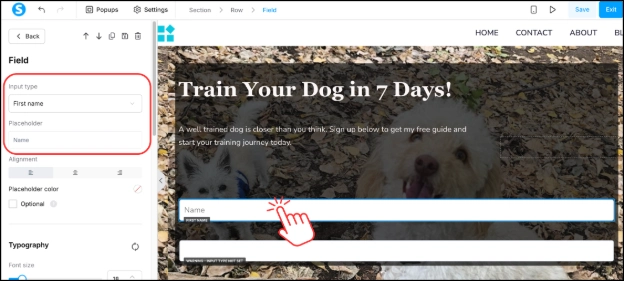
Click the first Form Input. In the left-side toolbar under “Input Type,” select “First Name.”
For the Placeholder Text, you can change it to simply “Name” so visitors can enter either their first name or their full name if they prefer. The Placeholder Text helps visitors know what information to enter in the box.
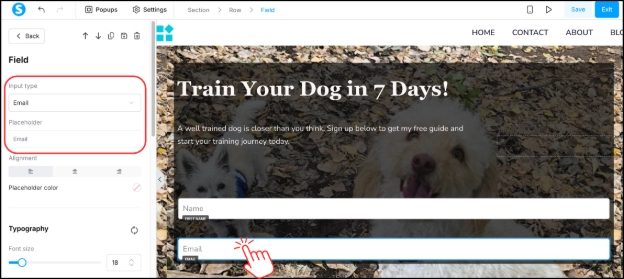
Click the second Form Input and select “Email” under “Input Type.” This field will be used to collect your visitors’ email addresses.
You can leave the Placeholder Text as it is, or change it to “Email Address” if you prefer.
🔘Step 4: Configure the Submit Button
Back on the left-side toolbar home screen, scroll down to Form and drag a Button element underneath the second Form Input.
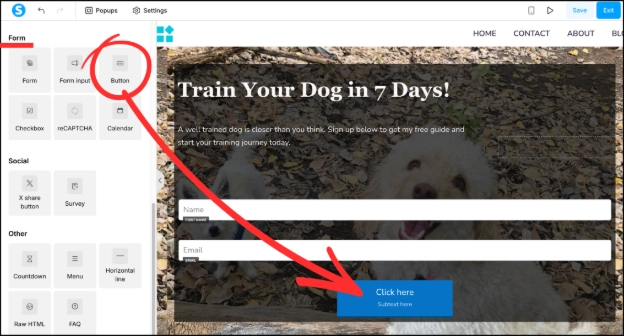
Click the button you just added.
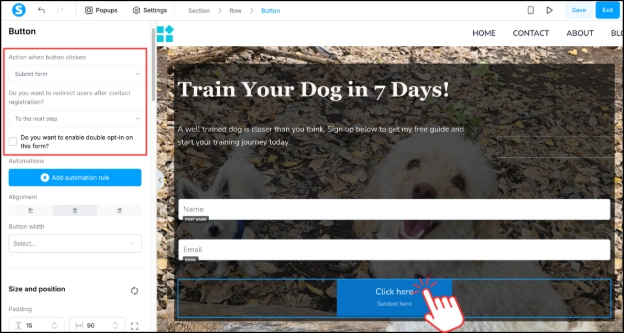
Under “Action when button clicked,” leave it set to “Submit Form.” This tells Systeme.io to collect the visitor’s information when they click the button.
Under “Do you want to redirect users after contact registration?”, leave it set to “To the Next Step.” This will send visitors to the next page in your funnel after they submit their information.
Leave "Do you want to enable double opt-in on this form?" unchecked. This setting asks subscribers to confirm their email address before being added to your list, which adds an extra step to the sign up process.
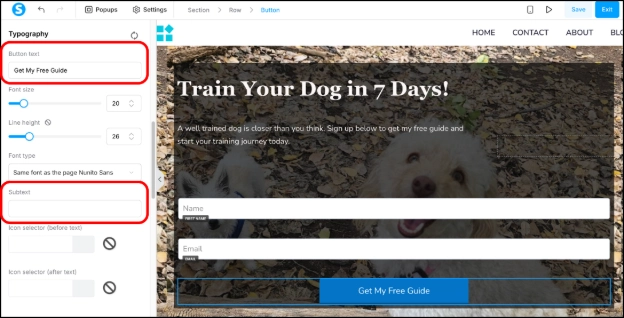
Scroll down to “Typography” and change the button text to your liking. You can use something simple like “Submit” or “Click Here.” If you’re offering a free resource, you could use something like “Get My Free Guide.” You can also remove the small text beneath the button by deleting the content in the Subtext box.
If you scroll down a little further, you can also customize the button color and other effects, such as shadows, borders, and hover effects.
✅ Step 5: Save and Test Your Opt-In Form
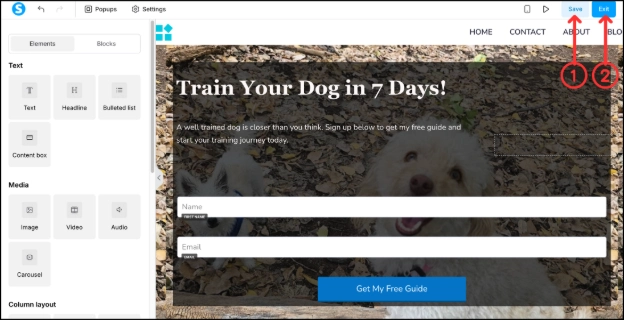
When you’re finished, click Save and Exit in the top-right corner.
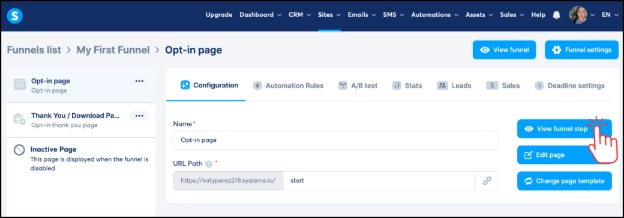
Click View Funnel Step to open your page.
Enter a test name and email address into the form, then click the submit button.
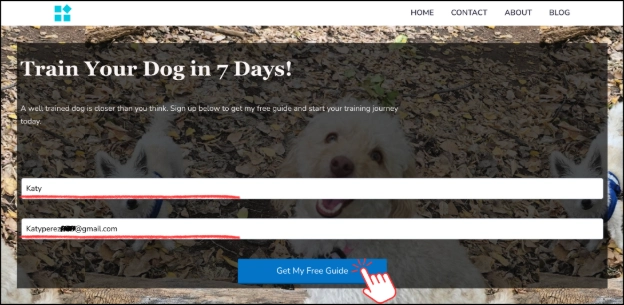
Return to your Systeme.io dashboard and go to CRM → Contacts.
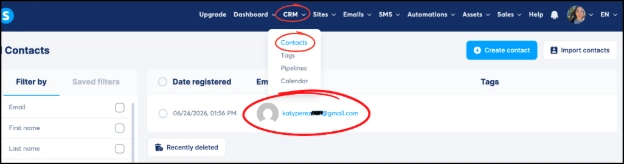
If your opt-in form is working correctly, you should see the information you submitted listed as a new contact.
📝Note:
If your contact doesn't appear immediately, don't worry. Refresh the Contacts page, and it should show up.
Your opt-in form is now ready to collect names and email addresses from your visitors.
Once your form is working correctly, the next step is creating a thank-you page so visitors have somewhere to go after submitting their information.
You can learn how to do that in my guide on how to create a thank-you page in Systeme.io.
If you don’t already have a Systeme.io account, you can create one using the button below.
Continue Learning Systeme.io
If you’re just getting started with Systeme.io, these beginner tutorials may help:
How to Create a Funnel in Systeme.io – Learn how to create your first funnel using a pre-made template.
How to Edit a Funnel Page in Systeme.io – Learn how to customize your funnel’s design, text, images, and buttons.
How to Create a Thank you Page in Systeme.io - Learn how to create a simple thank you page after someone opts in.
How to Add a Button to a Thank you Page in Systeme.io - Learn how to add a button, customize it, and link it to an affiliate offer, sales page or another URL.
How to Add and Verify a Sender Email Address in Systeme.io - Learn how to add and verify a sender email address so you can start sending emails in Systeme.io.
-
🛠️ What You’ll Need
-
🔷Step 1: Open the Funnel Editor
-
➕Step 2: Add an Opt-In Form (If Your Page Doesn’t Already Have One)
-
⚙️Step 3: Configure Your Name and Email Fields
-
🔘Step 4: Configure the Submit Button
-
✅ Step 5: Save and Test Your Opt-In Form
Disclosure: Some links in this article may be affiliate links, which means I may earn a commission at no extra cost to you if you choose to purchase through them. I only recommend tools I believe are genuinely useful, especially for beginners.