
How to Create a Thank You Page in Systeme.io (Beginner Tutorial)
-
🛠️ What You’ll Need
-
✅Step 1: Open the Thank You Page
-
✏️Step 2: Rename the Page (Optional)
-
🖼️ Step 3: Change the Background
-
✏️Step 4: Update the Thank You Message
-
🗑️Step 5: Delete Anything You Don’t Need
-
👀 Step 6: Preview Your Thank You Page
Disclosure: Some links in this article may be affiliate links, which means I may earn a commission at no extra cost to you if you choose to purchase through them. I only recommend tools I believe are genuinely useful, especially for beginners.
In this tutorial, you'll learn how to customize the Thank-You page visitors see after submitting your opt-in form.
If you haven’t created an opt-in form yet, check out my tutorial on how to create an opt-in form in Systeme.io first.
If you don't already have a Systeme.io account, you can create one here.
🛠️ What You’ll Need
• A funnel created in Systeme.io.
✅Step 1: Open the Thank You Page
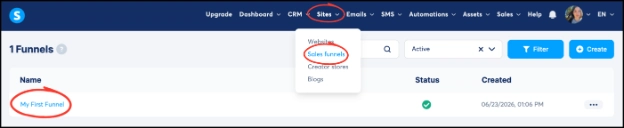
Go to Sites → Sales Funnels.
Open the funnel you want to edit.
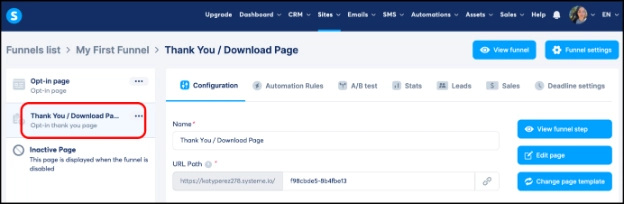
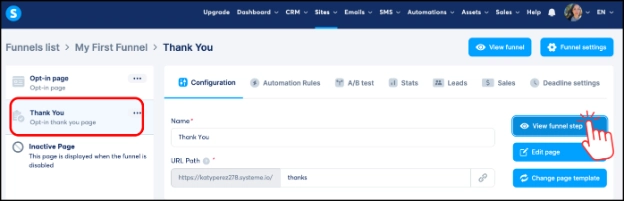
On the left side, click Thank You Page.
✏️Step 2: Rename the Page (Optional)
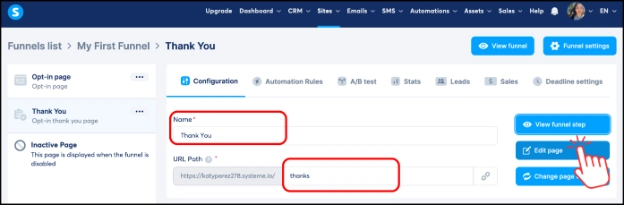
If you’d like, rename the page by removing “Download Page” and leaving “Thank You Page.”
Change the end of the URL Path to something simple, such as thanks, to make your page URL look cleaner.
Click Edit Page.
🖼️ Step 3: Change the Background
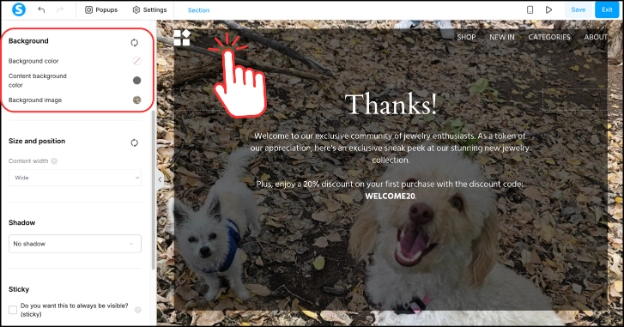
Click anywhere on the page background.
On the left side toolbar, scroll down to the Background section.
To keep your funnel consistent, choose a Background Color or upload a Background Image that matches your opt-in page.
✏️Step 4: Update the Thank You Message
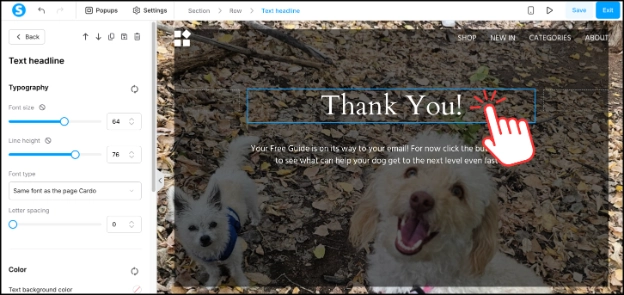
Click on the headline and text, then update them to match what happens after visitors reach your thank-you page.
💡Tip:
You can thank visitors for signing up, let them know what happens next, or ask them to click a button to continue to the next page or access a resource.
If you need help changing text, colors, fonts, backgrounds, or other design settings, check out my complete guide on how to edit a funnel page in Systeme.io.
🗑️Step 5: Delete Anything You Don’t Need
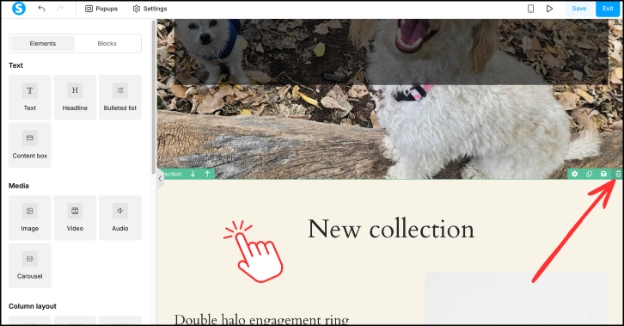
Click the section, row, or element you want to remove. Depending on what you select, it will be highlighted with a green, blue, or orange outline.
Hover over the outline, then click the trash icon to delete it.
💡Tip:
If the colored outlines don't appear, click anywhere on the page once, then hover over the section, row, or element again.
👀 Step 6: Preview Your Thank You Page
In the top-right corner of the funnel editor, click Save and Exit.
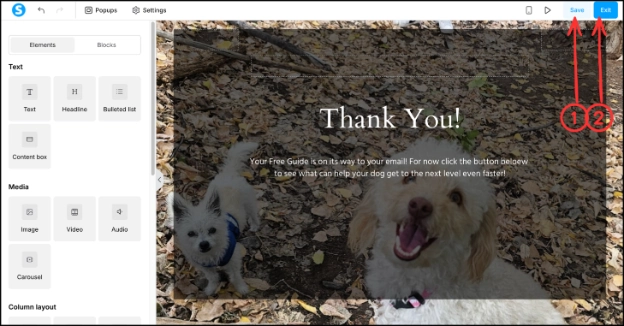
Make sure Thank You Page is selected, then click View Funnel Step on the right side to preview your page.
Check that your headline, text, background, and layout look the way you want.
Thats it! Your Thank You page is now ready to use.
If you haven't created your own funnel yet, you can get started with Systeme.io for free below.
Continue Learning Systeme.io
If you’re just getting started with Systeme.io, these beginner tutorials may help:
How to Create a Funnel in Systeme.io – Learn how to create your first funnel using a pre-made template.
How to Edit a Funnel Page in Systeme.io – Learn how to customize your funnel’s design, text, images, and buttons.
How to Create an Opt-in Form in Systeme.io – Learn how to collect email addresses with a simple opt-in form.
How to Add a Button to a Thank you Page in Systeme.io - Learn how to add a button, customize it, and link it to an affiliate offer, sales page or another URL.
How to Add and Verify a Sender Email Address in Systeme.io - Learn how to add and verify a sender email address so you can start sending emails in Systeme.io.
-
🛠️ What You’ll Need
-
✅Step 1: Open the Thank You Page
-
✏️Step 2: Rename the Page (Optional)
-
🖼️ Step 3: Change the Background
-
✏️Step 4: Update the Thank You Message
-
🗑️Step 5: Delete Anything You Don’t Need
-
👀 Step 6: Preview Your Thank You Page
Disclosure: Some links in this article may be affiliate links, which means I may earn a commission at no extra cost to you if you choose to purchase through them. I only recommend tools I believe are genuinely useful, especially for beginners.