
How to Edit a Funnel Page in Systeme.io (Beginner Tutorial)
-
🛠️What You’ll Learn
-
🔷Open the Funnel Editor
-
✏️How to Edit Headlines and Text
-
🔘How to edit your Button
-
🖼️How to edit your Background Image or Color
-
📐How to Edit Spacing
-
💾Save and Preview Your Funnel
Disclosure: Some links in this article may be affiliate links, which means I may earn a commission at no extra cost to you if you choose to purchase through them. I only recommend tools I believe are genuinely useful, especially for beginners.
In this article, I’ll show you how to use the funnel builder editing tools in Systeme.io so you can customize your funnel to match your offer.
If you’ve never edited a funnel before, don’t worry. It’s not as intimidating as it looks.
Once you learn how to edit one element, the rest starts to feel a lot easier because most of the tools follow a similar process.
We’ll go through it step by step so by the end, you feel more confident using the funnel editor inside Systeme.io.
If you don't already have a Systeme.io account you can create one here.
🛠️What You’ll Learn
In this tutorial, I’ll show you how to:
Edit headlines and text
Customize buttons
Change images and backgrounds
Adjust sections and layouts
Save and preview your changes
🔷Open the Funnel Editor
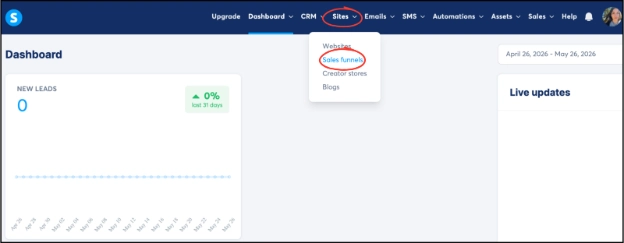
Go to Sites → Funnels
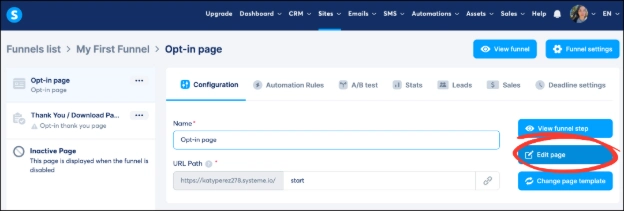
Open the funnel you want to edit
Click "Edit Page" to open the funnel editor
If you haven’t created a funnel yet, check out my tutorial on how to create a funnel in Systeme.io first.
✏️How to Edit Headlines and Text
Click on the headline or text, select the area you want to edit, then start typing.
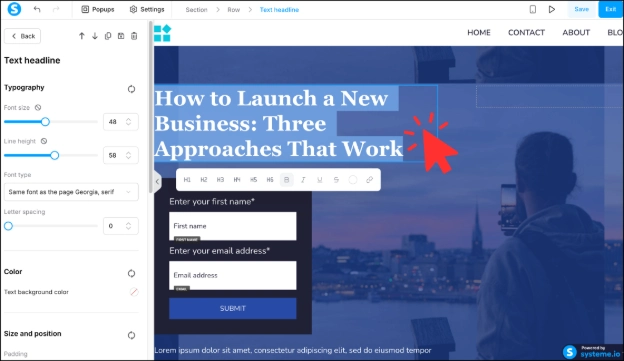
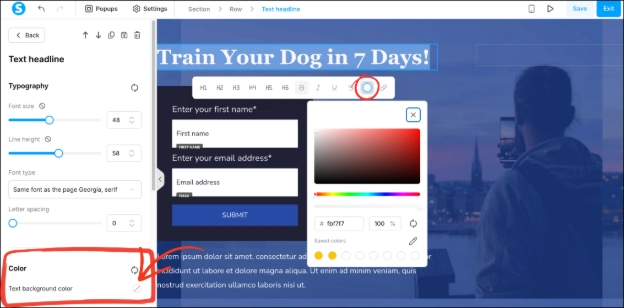
You can also change the font color by highlighting the text and choosing a different color from the color circle in the tool bar that appears under the text.
To change the background color of the text, use the left-side toolbar settings.
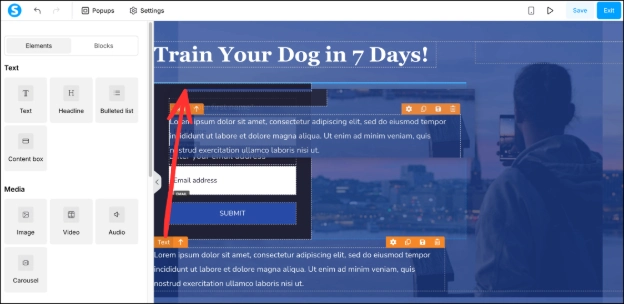
To move text around, click and hold the text element, then drag it to another section or row. The dotted areas show where elements can be placed, while the blue line shows the exact placement of where the text will appear once released.
🔘How to edit your Button
If your template doesn’t already include a button, you can add one using the elements menu in the left-side toolbar inside the funnel builder.
Hover over the button, then click on the settings icon or simply click the button itself.
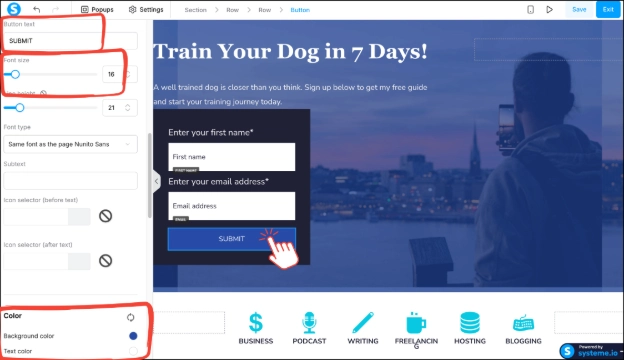
In the left-side toolbar that appears, scroll down to edit the button text, font size, colors, button width, borders, shadows, and more.
🖼️How to edit your Background Image or Color
Hover over the background image until you see the green outline and click on the settings icon or just click the background itself.
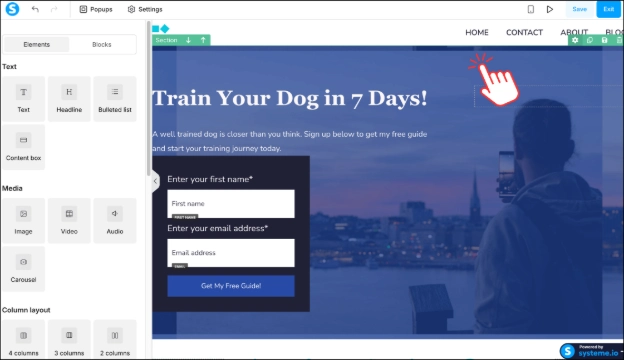
Go to the left side toolbar and scroll down until you see the Background option, then click on that little circle image.
Click “Delete Image”.
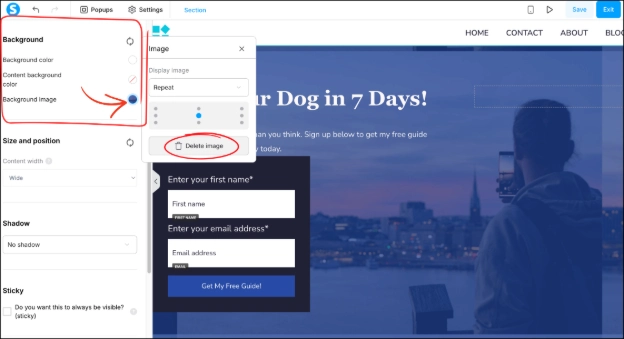
Then it will give you the option to upload a new image.
Click the “Upload” and upload an image of your choice.
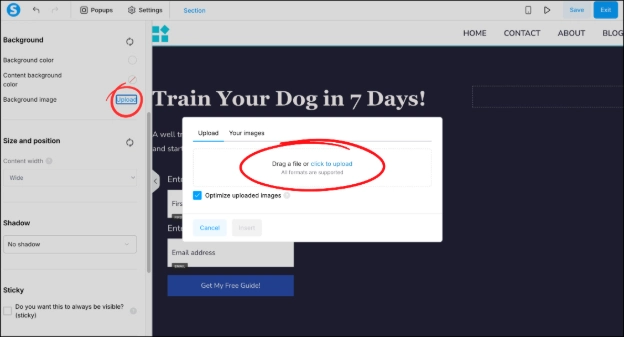
You can also just choose a color instead where it says "Background Color".
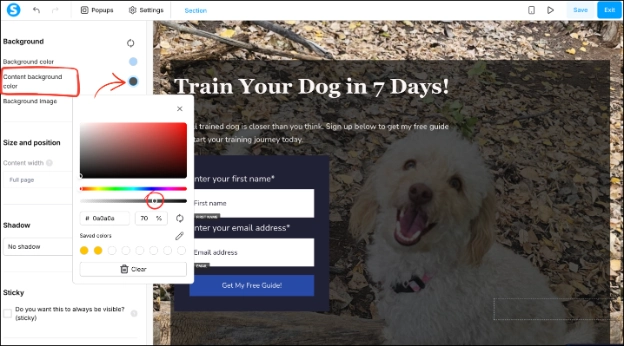
You can also add a background color overlay with opacity to make your text easier to read on top of busy images. Just click above the “Background Image” settings where it says “Content Background Color,” choose your color preference, then lower the opacity using the gray slider so both the image and text remain visible.
📐How to Edit Spacing
If your funnel feels too crowded, you can add spacing between sections to make the page easier to read.
Hover over the section you want to adjust (a full section, text, buttons, images, or other elements).
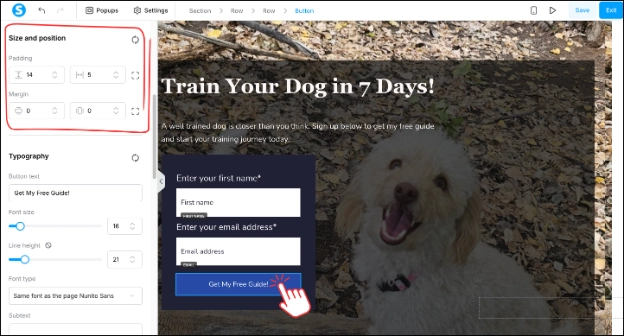
Click the settings icon or click directly on the element itself. In this example, we’ll use the button.
In the left-side toolbar, scroll down to the “Size and Position” option where you’ll see Margins and Padding settings.
Margins adjust the space outside the element (so it'll push whatever is outside the button away or closer), while Padding adjusts the space inside the element (so it adds more or less space around the words inside the button and makes the button bigger or smaller).
💾Save and Preview Your Funnel
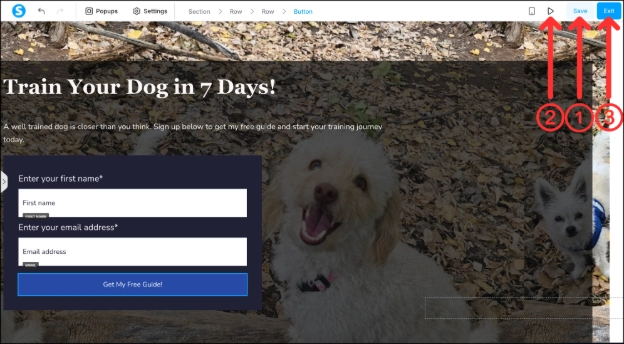
Once you’re done editing your funnel, click the “Save” button in the top-right corner.
To preview your funnel and see how it looks to visitors, click the preview icon next to the save button.
When you’re finished, click “Exit” to leave the funnel editor.
Your funnel page should now be customized and ready to go.
Once you learn how to edit one element inside Systeme.io, the rest of the funnel builder becomes much easier to use.
If you don't have a Systeme.io account yet, you can create one using the button below.
Continue Learning Systeme.io
If you’re just getting started with Systeme.io, these beginner tutorials may help:
How to Create a Funnel in Systeme.io – Learn how to create your first funnel using a pre-made template.
How to Create an Opt-in Form in Systeme.io – Learn how to collect email addresses with a simple opt-in form.
How to Create a Thank you Page in Systeme.io - Learn how to create a simple thank you page after someone opts in.
How to Add a Button to a Thank you Page in Systeme.io - Learn how to add a button, customize it, and link it to an affiliate offer, sales page or another URL.
How to Add and Verify a Sender Email Address in Systeme.io - Learn how to add and verify a sender email address so you can start sending emails in Systeme.io.
-
🛠️What You’ll Learn
-
🔷Open the Funnel Editor
-
✏️How to Edit Headlines and Text
-
🔘How to edit your Button
-
🖼️How to edit your Background Image or Color
-
📐How to Edit Spacing
-
💾Save and Preview Your Funnel
Disclosure: Some links in this article may be affiliate links, which means I may earn a commission at no extra cost to you if you choose to purchase through them. I only recommend tools I believe are genuinely useful, especially for beginners.